 Remelia
Several children
In the parents’ app, add each child with a first name and a year group; nothing else is asked for there. Each has their own letter, plan and controls. Up to 6 children can share one device, each with their own record.
For parents
Your child practises on their own device. You get a plain letter each week, progress shown honestly, a way to check the plan with school, and the controls, in the parents’ app on your own phone.
On your phone
The parents’ app
parents.remelia.co.uk
The weekly letter, the school page, the controls and practice papers, for each child on your account.
On your child’s device
For grown-ups
Behind a grown-ups’ check in your child’s app
The same, plus Progress, linking the device and the children who share it.
Getting started
The first three happen on your child’s device, with you beside them. The account comes when you want the letter on your own phone.
Open Remelia in any web browser on their laptop, tablet or phone; nothing to install. Give a first name, year group and pronouns, and their school if you like.
Next in the set-up: tick every school your child might apply for, grouped by exam, or “Not sure yet” for the curriculum with no exam date. None is chosen for you; skip it and This week asks again, and Controls changes it at any time.
24 maths questions find where your child is, so practice starts in the right place. The English check, 16 questions, comes the next day.
When you are ready, create it at parents.remelia.co.uk on your phone, add your child, and type the code it shows into their device.
Each exam plan is dated from your child’s year group: Remelia works to the sitting for the September they start Year 7. For a school without a plan, choose “Not sure yet” and Remelia teaches the Key Stage 2 curriculum with no exam date.
Opens in this browser — use your child’s device. No account needed to start. Linking is optional: without it, everything stays on your child’s device and For grown-ups is there to read.
This week and the letter
This week is the page to open once a week, in the parents’ app or in For grown-ups. It answers what a parent is really asking: are we on track, is my child all right, and is there anything for me to do?
The full letter then goes subject by subject, naming each topic that is not secure yet. Your child is compared with the curriculum and with themselves last month, never with other children.
What This week tells you
Progress, and the range
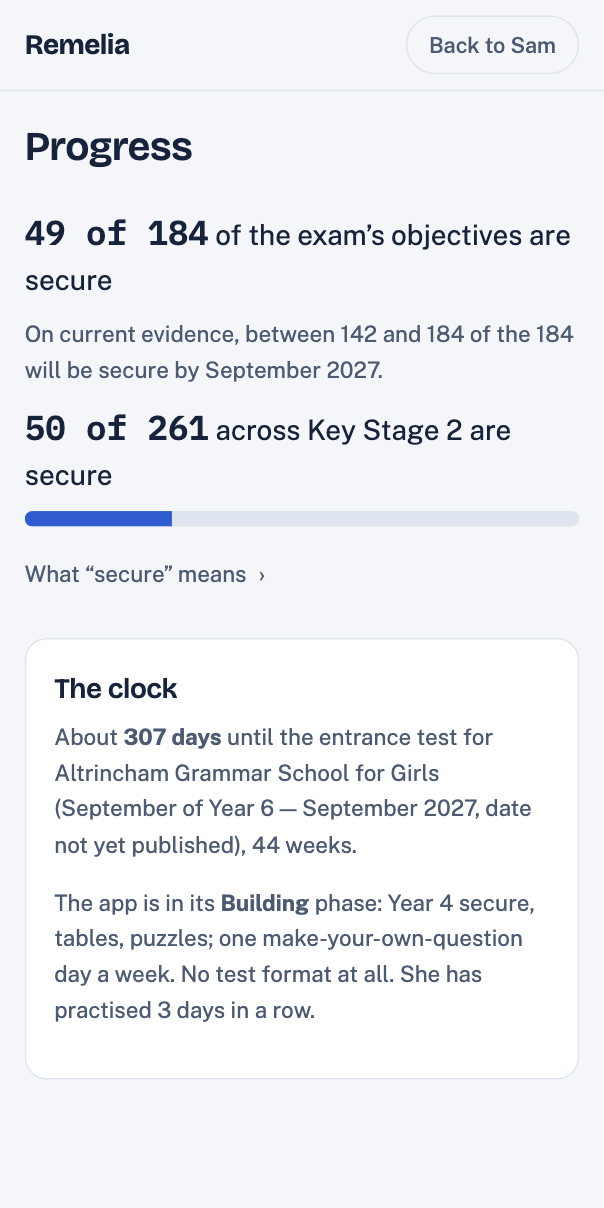
Progress is counted in secure topics: ones your child has answered correctly after a gap of about 20 days, remembered rather than just done.
“On current evidence, between … and … of the … will be secure by the exam.”
The assumption: that the recent pace holds. It is said every time, and a steadier pace narrows the range.
It is a range over how much of the syllabus will be covered, never over passing: what score passes is not published, so a predicted result would be invented.
The Progress page has the rest: how many of each chosen exam’s objectives are secure, the time left, every year and strand, and what is not taught yet. It is in For grown-ups on your child’s device.
School
Remelia teaches maths in the order your child’s school does. The School page is where you keep it that way.
Not sure what the class is doing? One tap drafts an email to the teacher asking for the half-term plan.
To your child’s teacher
Subject Year 5 maths: what is taught each half-term?
Dear teacher,
I am Sam’s parent. Is the maths long-term plan for Year 5 on the school website? If it is, could you send me the link?
If not, could you tell me which maths blocks Year 5 covers each half-term this year, and which scheme the school follows (White Rose, Power Maths or another)?
It helps me keep practice at home in step with class. Thank you.
Kind regards
Controls
In both places, under Controls. Changes take effect from your child’s next session; made on your phone, they reach your child’s device the next time it is in touch.
Also under Controls: a maths practice paper for your child to work through with pen and paper.
Maths only. The papers are practice made by Remelia, not past papers, and are best once your child has met everything they cover.
Part 1
Question booklet
Part 2
Answer sheet
Part 3
Answers, for you
Children, devices and data
In the parents’ app, add each child with a first name and a year group; nothing else is asked for there. Each has their own letter, plan and controls. Up to 6 children can share one device, each with their own record.
The parents’ app shows a code. On your child’s device, open For grown-ups, then Devices and data, and type it in. A code works once, for 10 minutes. Linked devices share one record; unlinking keeps everything on the device.
Nothing about the child leaves the device unless a grown-up links it to an account. Then only the child’s answers, the grown-ups’ settings and the device’s name go, and only to that account.
Open Remelia on your child’s device, then create your account in the parents’ app to follow along on your phone.
Opens in this browser — use your child’s device. No account needed to start.